Red Hat Developer Lightspeed
Red Hat Developer Lightspeed is an AI-powered assistant integrated into Red Hat Developer Hub that helps developers interact with the Software Catalog, TechDocs, and other Developer Hub features through natural language queries. This exercise walks you through the integration process.
For detailed information, refer to the official documentation.
Overview
The Lightspeed integration consists of several components:
-
Lightspeed Core Service (LCS): The backend service that handles AI interactions, including the LLM (Large Language Model) capabilities for processing queries.
-
PostgreSQL Database: (Optional) External database to store chat histories from users and managed by LCS
-
MCP (Model Context Protocol) Tools: Enable Lightspeed to interact with Red Hat Developer Hub catalog and TechDocs
Configure RBAC Permissions
Before applying the Lightspeed configuration, you need to add Lightspeed-specific permissions to your RBAC policy. These permissions allow users to interact with the Lightspeed chat feature.
Add the following permissions to your RBAC policy ConfigMap to allow users to read, create and delete chat conversations:
# Lightspeed permissions
p, role:default/team-a, lightspeed.chat.read, read, allow
p, role:default/team-a, lightspeed.chat.create, create, allow
p, role:default/team-a, lightspeed.chat.delete, delete, allow
p, role:default/team-b, lightspeed.chat.read, read, allow
p, role:default/team-b, lightspeed.chat.create, create, allow
p, role:default/team-b, lightspeed.chat.delete, delete, allow
Apply the updated RBAC policy ConfigMap that includes Lightspeed permissions:
oc apply -f ./content/modules/ROOT/examples/exercises/rbac-policy-configmap-15.yaml -n rhdh-gitlabConfigure Lightspeed Core Services
This step creates the necessary secrets and configuration for the Lightspeed backend services.
The Lightspeed auth secret contains configuration for connecting to the LLM service that powers Lightspeed’s AI capabilities.
Create a secret with an app id and secret:
apiVersion: v1
kind: Secret
metadata:
  name: rhdh-lightspeed-auth-secrets
type: Opaque
stringData:
  ENABLE_VLLM: "true"
  VLLM_URL: "REPLACE_IT"
  VLLM_API_KEY: "REPLACE_IT"
  # Validation
  ENABLE_VALIDATION: "true"
  VALIDATION_PROVIDER: "vllm"
  VALIDATION_MODEL_NAME: "REPLACE_IT"
The rhdh-lightspeed-auth-secrets Secret contains:
-
ENABLE_VLLM: Whether to enable the VLLM service -
VLLM_URL: The endpoint URL for the LLM service -
VLLM_API_KEY: Authentication key for the LLM service -
ENABLE_VALIDATION: Whether to enable the validation service -
VALIDATION_PROVIDER: The provider to use for validation -
VALIDATION_MODEL_NAME: The specific model to use for validation
| Review and update the values in this file to match your LLM service configuration before applying. |
You can create the rhdh-lightspeed-auth-secrets.yaml and run:
oc apply -f ./rhdh-lightspeed-auth-secrets.yaml -n rhdh-gitlabBy default LCS will use a SQLlite instance to persist the chat histories. However, if the pod is restarted, all conversations will be lost. In this scenario, we will create an external PostgreSQL database to persist all conversations independently of Red Hat Developer Hub pod lifecycle.
There are different ways to install a PostgreSQL database on OpenShift. For demo purposes of this
workshop, we will use the default PostgreSQL database used by Red Hat Developer Hub. This database is
configured in the backstage-psql-secret-developer-hub secret, and available by the
backstage-psql-developer-hub service.
|
It is needed to create the rhdh-ls database instance to persist the chat histories. Run the following
command to create it:
oc exec -n rhdh-gitlab backstage-psql-developer-hub-0 -- env PGPASSWORD="$PG_ADMIN_PASS" psql -U postgres -h 127.0.0.1 -p 5432 -c "CREATE DATABASE \"rhdh-ls\";"The Lightspeed Stack ConfigMap contains the configuration for the Lightspeed Core Service, including service settings, storage paths, and MCP server connections.
oc apply -f ./content/modules/ROOT/examples/exercises/ls-stack-configmap-15.yaml -n rhdh-gitlabThe lightspeed-stack ConfigMap contains:
-
Service configuration (host, port, workers)
-
Llama Stack connection settings
-
User data collection settings (feedback, transcripts)
-
Conversation cache configuration
-
MCP server endpoint configuration
| Update the MCP server URL in the ConfigMap to match your Developer Hub route URL. |
The Lightspeed App Config contains the frontend configuration for the Lightspeed plugin, including MCP server tokens, custom prompts, and Content Security Policy (CSP) settings.
To authorize requests to the MCP endpoint using <MCP_TOKEN>, add one or more servers to the
mcpServers list in the Developer Lightspeed for RHDH configuration file:
lightspeed:
  mcpServers:
  - name: mcp::backstage
    token: ${MCP_TOKEN}
Apply the changes:
oc apply -f ./content/modules/ROOT/examples/exercises/ls-app-config-configmap-15.yaml -n rhdh-gitlabThe lightspeed-app-config ConfigMap named contains:
-
CSP (Content Security Policy) settings for the frontend
-
MCP server authentication token
-
Optional custom user prompts for the chat interface
-
Optional service port and system prompt overrides
Update Red Hat Developer Hub Configuration
This step updates the Developer Hub instance to enable Lightspeed plugins and deploy the necessary sidecar containers. This is very easy, just enabling this flavour in the Backstage Custom Resource:
  flavours:
    - name: lightspeed
      enabled: true
Apply the updated Backstage Custom Resource that adds the Lightspeed sidecar containers and configuration, adding the secrets with the credentials to access to the database:
oc apply -f ./content/modules/ROOT/examples/exercises/rhdh-instance-15.yaml -n rhdh-gitlabThis enabled automatically to add set of new init containers and side container to create the full architecture of this solution:
-
Add an init container (
init-rag-data) that copies RAG (Retrieval-Augmented Generation) data and embeddings model to a shared volume -
Add lightspeed-core sidecar container that runs the Lightspeed Core Service
-
Mount the
lightspeed-stackConfigMap andlightspeed-app-configConfigMap
Verify the Installation
After applying all configurations, verify that the Lightspeed integration is working:
-
Check that all pods are running:
oc get pods -l rhdh.redhat.com/app=backstage-developer-hub -n rhdh-gitlabYou should see containers for
backstage-backend,llama-stack, andlightspeed-corein the pod. -
Verify the Lightspeed plugin is loaded:
oc logs deployment/backstage-developer-hub -c backstage-backend -n rhdh-gitlab | grep -i lightspeed -
Access the Lightspeed UI:
-
Navigate to your Red Hat Developer Hub URL
-
Look for the "Lightspeed" menu item in the navigation
-
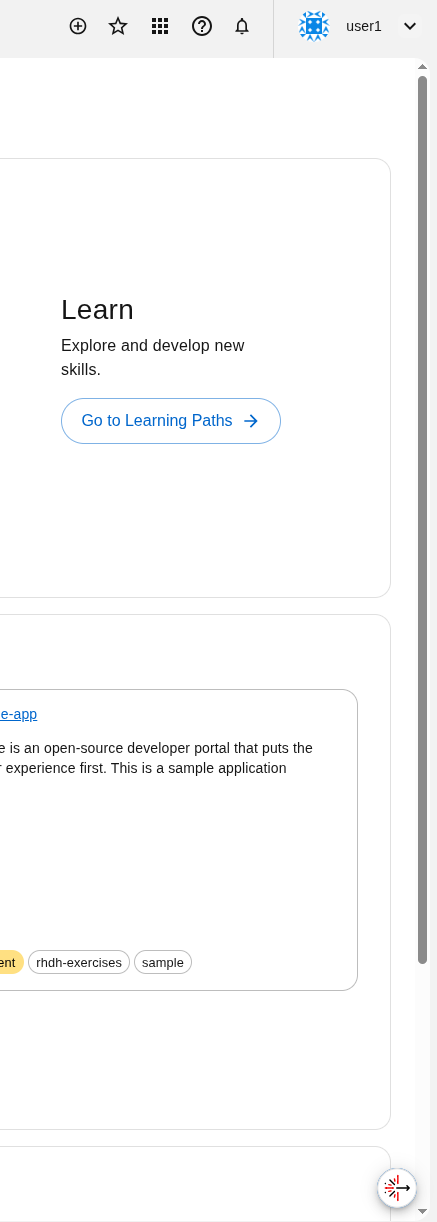
An floating icon should appear in the bottom right corner of the page:
-
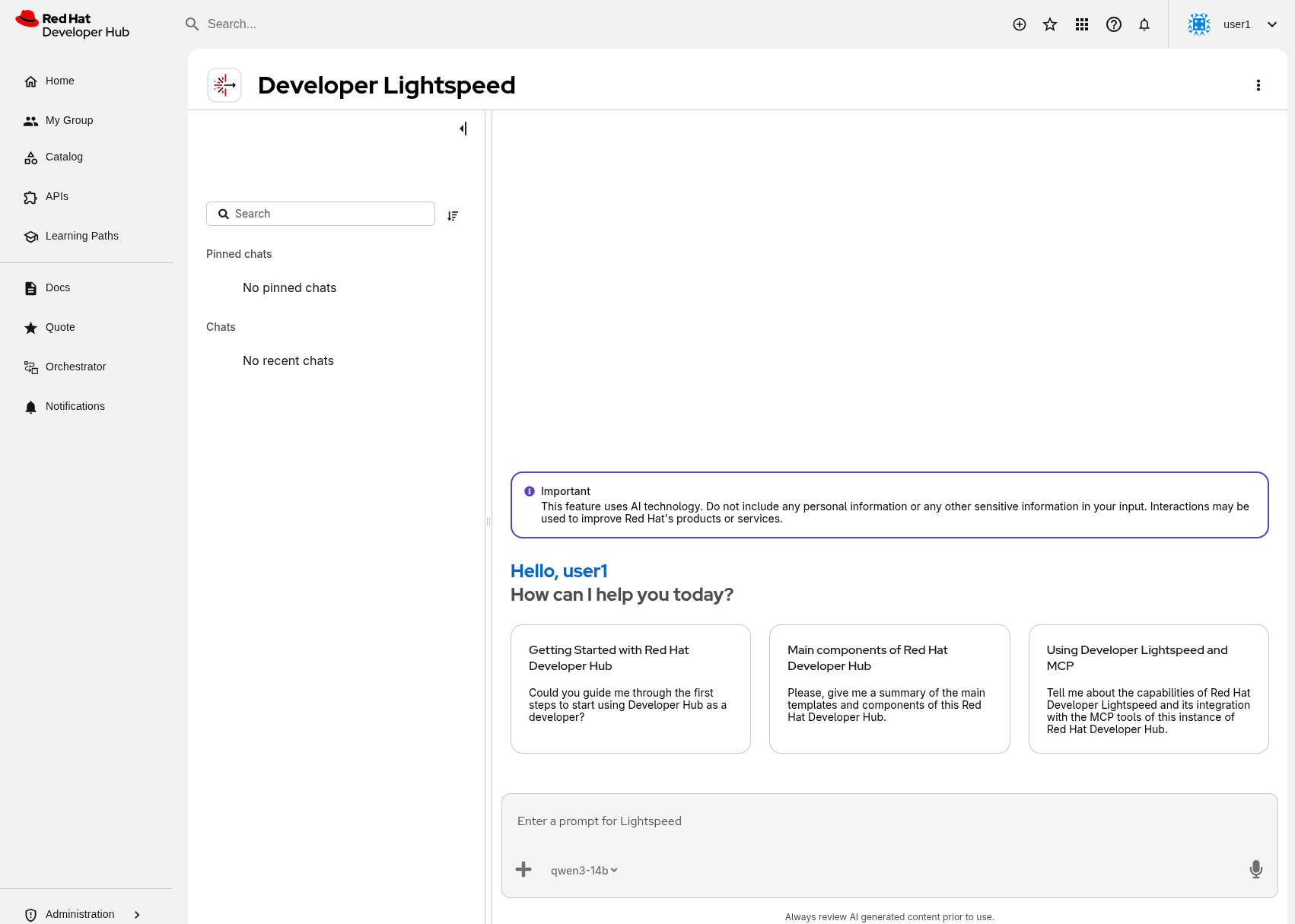
Clicking in shows the chat area:
-
Test Developer Lightspeed
Once the installation is complete and all pods are running, you can test the Lightspeed integration by asking questions in the chat interface. Here are some example queries you can try:
-
Catalog Queries:
-
"Could you list the templates available in the Red Hat Developer Hub Catalog?"
-
"Could you list the components of the Red Hat Developer Hub catalog where the owner is the
team-a?"
-
-
TechDocs Queries:
-
"Fetch all techdocs from the Red Hat Developer Hub server. List only name, title and description."
-
"What is the coverage of techdocs in the default namespace?"
-
"Fetch page
index.htmlfrom techdoc with reference `component:default/my-sample-app`"
-
-
General Queries:
-
"Can you guide me through the first steps to start using Developer Hub as a developer?"
-
"Can you guide me through the Software Catalog and add my service?"
-
"Can you guide me through the Technical Docs of the Catalog?"
-
These queries demonstrate how Lightspeed can interact with the Developer Hub catalog and TechDocs through the MCP tools, providing AI-powered assistance for navigating and understanding your software catalog.