Model Context Protocol (MCP)
Since Red Hat Developer Hub 1.9, there is a Developer Preview feature to integrate it with AI clients by Model Context Protocol (MCP) server. This feature provides a standardized method for AI applications to access Red Hat Developer Hub information and workflows through defined MCP tools.
MCP is a standardized method for linking AI models and applications (MCP clients) with external systems (MCP servers). This connection facilitates access to information and workflows residing on those systems. MCP servers are responsive for defining the tools that MCP clients can interact with.
Red Hat Developer Hub supports running MCP tools through the mcp-actions-backend plugin. To enable
it we need to add the following dynamic plugins:
      - package: oci://ghcr.io/redhat-developer/rhdh-plugin-export-overlays/backstage-plugin-mcp-actions-backend:bs_1.45.3__0.1.5!backstage-plugin-mcp-actions-backend
        disabled: false
      - package: oci://ghcr.io/redhat-developer/rhdh-plugin-export-overlays/red-hat-developer-hub-backstage-plugin-software-catalog-mcp-tool:bs_1.45.3__0.4.1!red-hat-developer-hub-backstage-plugin-software-catalog-mcp-tool
        disabled: false
      - package: oci://ghcr.io/redhat-developer/rhdh-plugin-export-overlays/red-hat-developer-hub-backstage-plugin-techdocs-mcp-tool:bs_1.45.3__0.3.2!red-hat-developer-hub-backstage-plugin-techdocs-mcp-tool
        disabled: false
Those plugins will enable the Software Catalog MCP and TechDocs MCP tools.
The Software Catalog MCP lists Backstage entities, such as Components, Systems, Resources,
APIs, Locations, Users, and Groups.
The TechDocs MCP tool enables MCP clients to search and retrieve documentation directly from TechDocs registered in Red Hat Developer Hub. The following TechDocs MCP tools are supported:
fetch-techdocs, analyze-techdocs-coverage, retrieve-techdocs-content.
To allow MCP clients to use the defined MCP tools and access the exposed capabilities of Red Hat Developer Hub, we need to extend the configuration adding:
  backend:
    auth:
      externalAccess:
        - type: static
          options:
            token: ${MCP_TOKEN}
            subject: mcp-clients
    actions:
      pluginSources:
        - software-catalog-mcp-tool
        - techdocs-mcp-tool
The MCP_TOKEN is a static token for authentication against the MCP server endpoint. MCP clients
(such as Cursor, Continue, or Lightspeed Core) will use this token for authentication.
Generate the token and add it into the Red Hat Developer Hub secrets configuration can be done by:
export MCP_TOKEN=$(node -p 'require("crypto").randomBytes(24).toString("base64")' | base64 -w0)
oc patch secret rhdh-secrets -n rhdh-gitlab -p '{"data":{"MCP_TOKEN":"'"${MCP_TOKEN}"'"}}'
Apply the changes
oc apply -f ./content/modules/ROOT/examples/exercises/dynamic-plugins-14.yaml -n rhdh-gitlab
oc apply -f ./content/modules/ROOT/examples/exercises/rhdh-app-configmap-14.yaml -n rhdh-gitlab
Integrate your AI client with Red Hat Developer Hub MCP Server
Using Continue
For this example, we will use Continue as our AI client to verify the integration with the Red Hat Developer Hub MCP feature. As part of this exercise we will use the VSCode extension.
| If you don’t have a local VSCode instance running, you can use it a default workspace provided by Red Hat OpenShift Dev Spaces sandbox. Just create a "empty workspace" or just create importing this GitHub repository. |
To install the Continue plugin just follow these steps:
-
Click the
Extensionsicon. -
Search for the
Continueextension and install the Pre-Release version. -
If you are asked, click the
Trust the Published and Installbutton. -
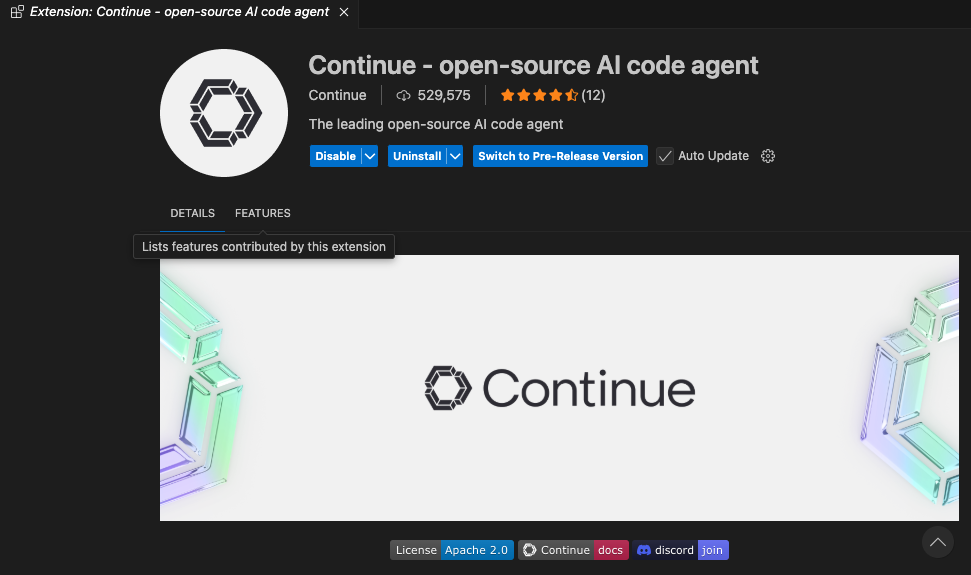
After a successful installation, you will se a screen similar to this:
Add Red Hat Developer Hub MCP configuration
It is time to set up to integrate to Red Hat Developer Hub.
-
Click the Continue icon: image::continue-icon.png[Continuer Icon]
-
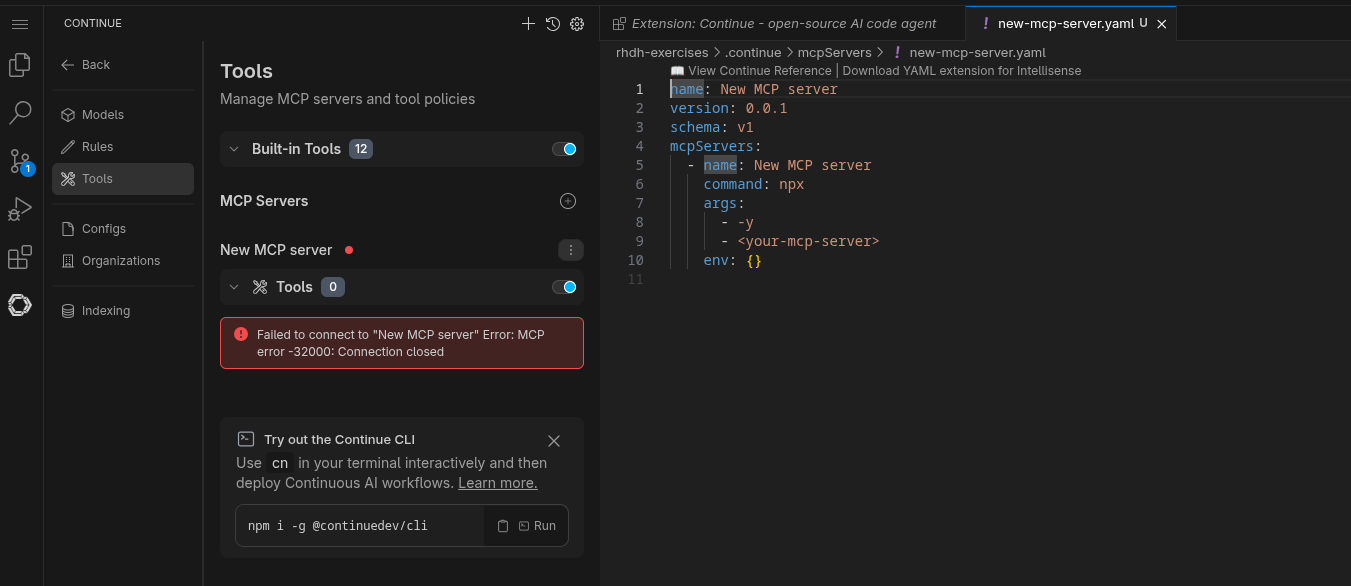
Click the tools icon, in the tools window, click the plus icon to configure the MCP server.
-
Complete the configuration adding the definition of Red Hat Developer Hub MCP server. This configuration requires to use the
MCP_TOKENand the MCP server endpoint:-
To get the MCP Server endpoint:
-
echo https://$(oc get route backstage-developer-hub -n rhdh-gitlab -o jsonpath='{.spec.host}')/api/mcp-actions/v1-
Complete the configuration similar to this one:
name: Red Hat Developer Hub MCP server
version: 0.0.1
schema: v1
mcpServers:
  - name: Red Hat Developer Hub MCP Server
    type: streamable-http
    url: <REPLACE-RHDH-HOST>/api/mcp-actions/v1
    requestOptions:
      headers:
Authorization: "Bearer <REPLACE-MCP-TOKEN>"-
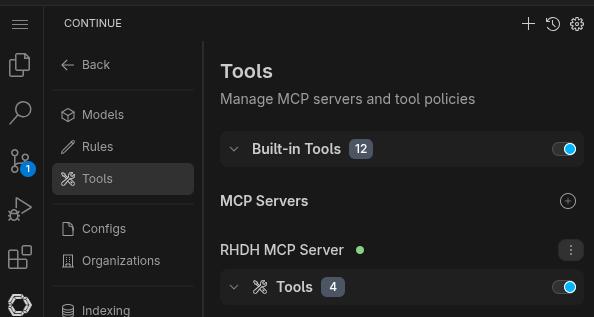
If the configuration is successful a green icon should appear near to the MCP server:
Add LLM in the AI Assistant
To complete the integration, we need to add a LLM into our AI Assistant.
| If you have your own model to use (e.g: Gemini, OpenAI), continue the configuration using the values and structured based on your own model. In the case, you don’t have your own self-hosted model and you are a Red Hatter, you can use an instance provided by the MaaS (Model as a Service) from the Red Hat AI BU. This is not an official Red Hat Service. It is for Red Hat associates' internal demo purposes only, provided 'as-is' without support or SLA. |
-
Access the URL and sign in with your Red Hat account: MaaS website.
-
Click Log in with SSO.
-
Access Models and Subscribe the
qwen3-14bmodel. -
Access API Keys and Create API Key.
-
Save the API Key and the Endpoint URL for later usage.
Back to your IDE to add your LLM model:
-
Click the Continue icon.
-
Click the ADD Chat Model option, then click config file
-
A new file named
config.yamlwill be created. -
Copy the following content and paste it
name: Local Assistant
version: 1.0.0
schema: v1
models:
  - name: qwen3-14b
    provider: openai
    model: qwen3-14b
    apiBase: <ADD_API_BASE_URL>
    apiKey: <ADD_API_KEY>
    roles:
      - chat
      - edit
      - apply
tabAutocompleteModel:
  title: RamaLama (AutoComplete)
  provider: custom
  model: default
allowAnonymousTelemetry: false
context:
  - provider: code
  - provider: docs
  - provider: diff
  - provider: terminal
  - provider: problems
  - provider: folder
- provider: codebase-
Copy the Endpoint URL from the MaaS website and paste it as value of the
apiBaseparameter. Include/v1at the end of the URL. -
Copy the API Key from the MaaS website and paste it as value of the
apiKeyparameter.
Now, your AI assistant is ready to be used.
Using Cursor
Cursor is an AI-powered code editor that supports Model Context Protocol (MCP) servers. You can integrate Cursor with your Red Hat Developer Hub MCP server to enable AI assistants to query your software catalog, templates, and TechDocs directly from within Cursor.
To integrate Red Hat Developer Hub MCP server with Cursor:
-
Create the MCP configuration file: Run the following command to create the
mcp.jsonfile in the.cursordirectory. This command will automatically retrieve your Red Hat Developer Hub instance URL from the OpenShift route and use theMCP_TOKENenvironment variable for authentication:
mkdir -p .cursor && cat > .cursor/mcp.json <<EOF
{
  "mcpServers": {
    "rhdh-mcp-server": {
      "url": "https://$(oc get route backstage-developer-hub -n rhdh-gitlab -o jsonpath='{.spec.host}')/api/mcp-actions/v1",
      "headers": {
        "Authorization": "Bearer ${MCP_TOKEN}"
      },
      "requestOptions": {
        "rejectUnauthorized": false,
        "strictSSL": false
      }
    }
  }
}
EOF
Make sure the MCP_TOKEN environment variable is set before running this command.
If it’s not set, you can retrieve it from the OpenShift secret:
|
export MCP_TOKEN=$(oc get secret rhdh-secrets -n rhdh-gitlab -o jsonpath='{.data.MCP_TOKEN}' | base64 -d)-
Restart Cursor: After creating the configuration file, restart Cursor to load the MCP server connection.
-
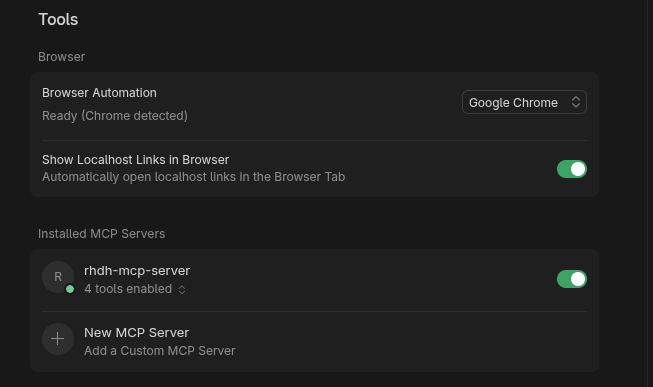
Verify the connection: Once Cursor restarts, the MCP server should be connected. You can verify this in Cursor’s MCP settings, where you should see a green indicator confirming the connection is active:
Once configured, you can use Cursor’s AI assistant to query your Red Hat Developer Hub catalog, fetch TechDocs, and interact with your software templates directly from the editor.
Testing the model and MCP
First, lets confirm that we can interact with our AI assistant.
-
Click the recently added model, and ask some easy, such as:
Hi! -
Ensure agent is selected in the Continue terminal. This agent interacts with the MCP server tools.
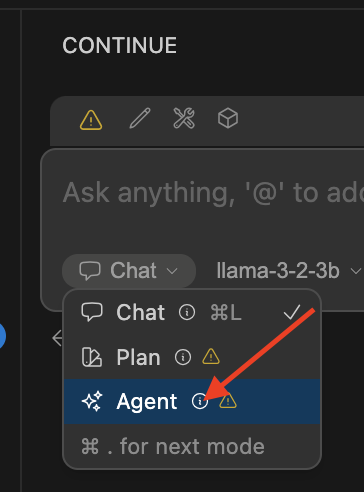
Let’s try some of the next queries:
-
Could you list the templates available in the Catalog?
-
Fetch all techdocs from the Red Hat Developer Hub server
-
Could you list the components of the Red Hat Developer Hub catalog where the owner is the
team-a? -
What is the coverage of techdocs in the default namespace?
-
Fetch page
index.htmlfrom techdoc with referencecomponent:default/my-sample
Try your own queries.